Home
Welcome to the sqlThunder wiki!
SQL Thunder QUICK start.
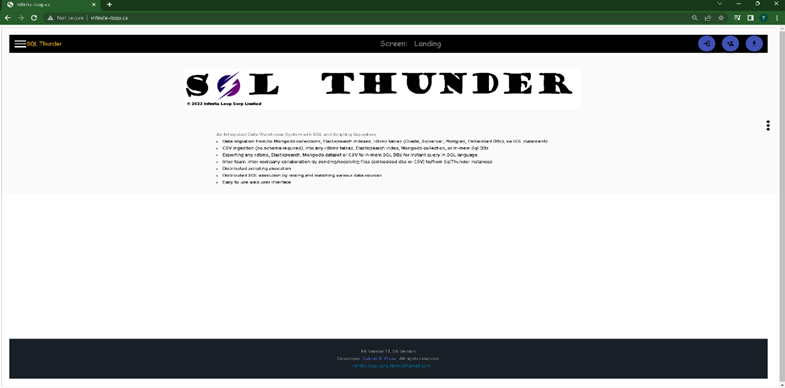
Landing area
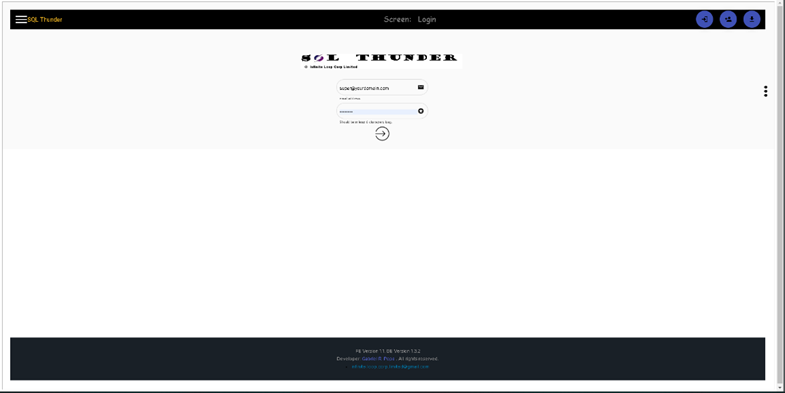
Login page
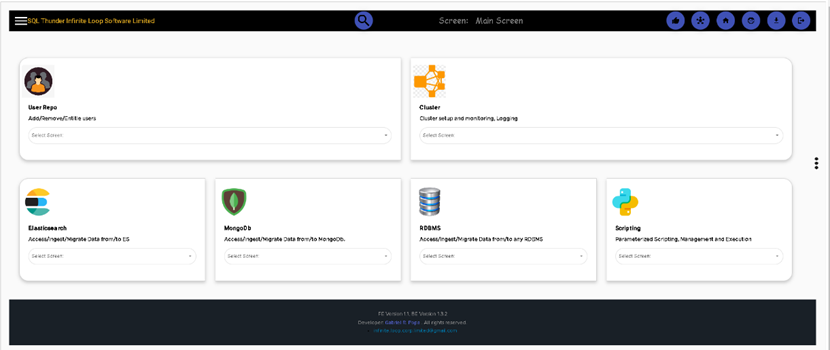
The main page, after login
User Management. Simple add/remove users
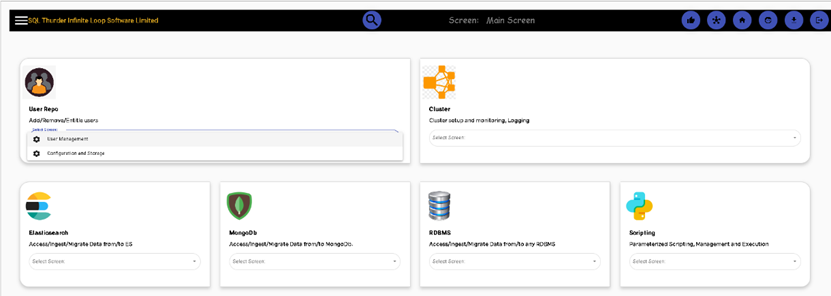
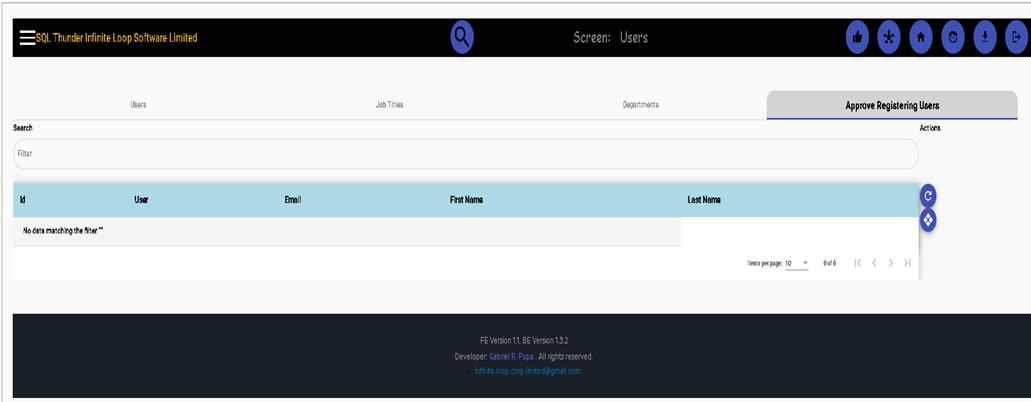
Click on User Management to add/approve/delete users. Add job titles and departments
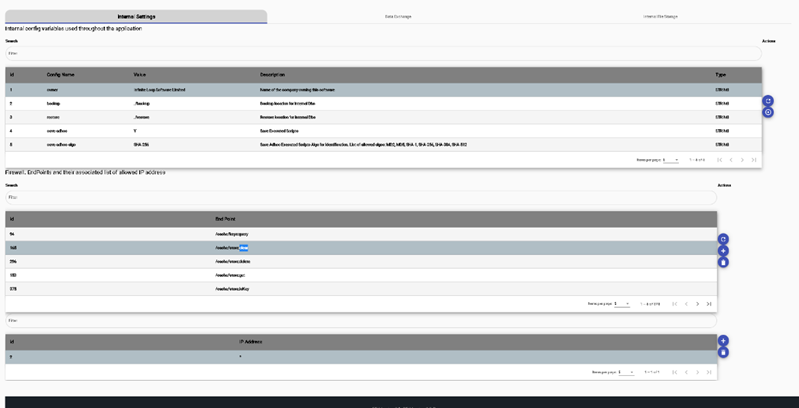
Internal Settings. Variables used throughout the application. Also, a simple firewall to reduce security exposure.
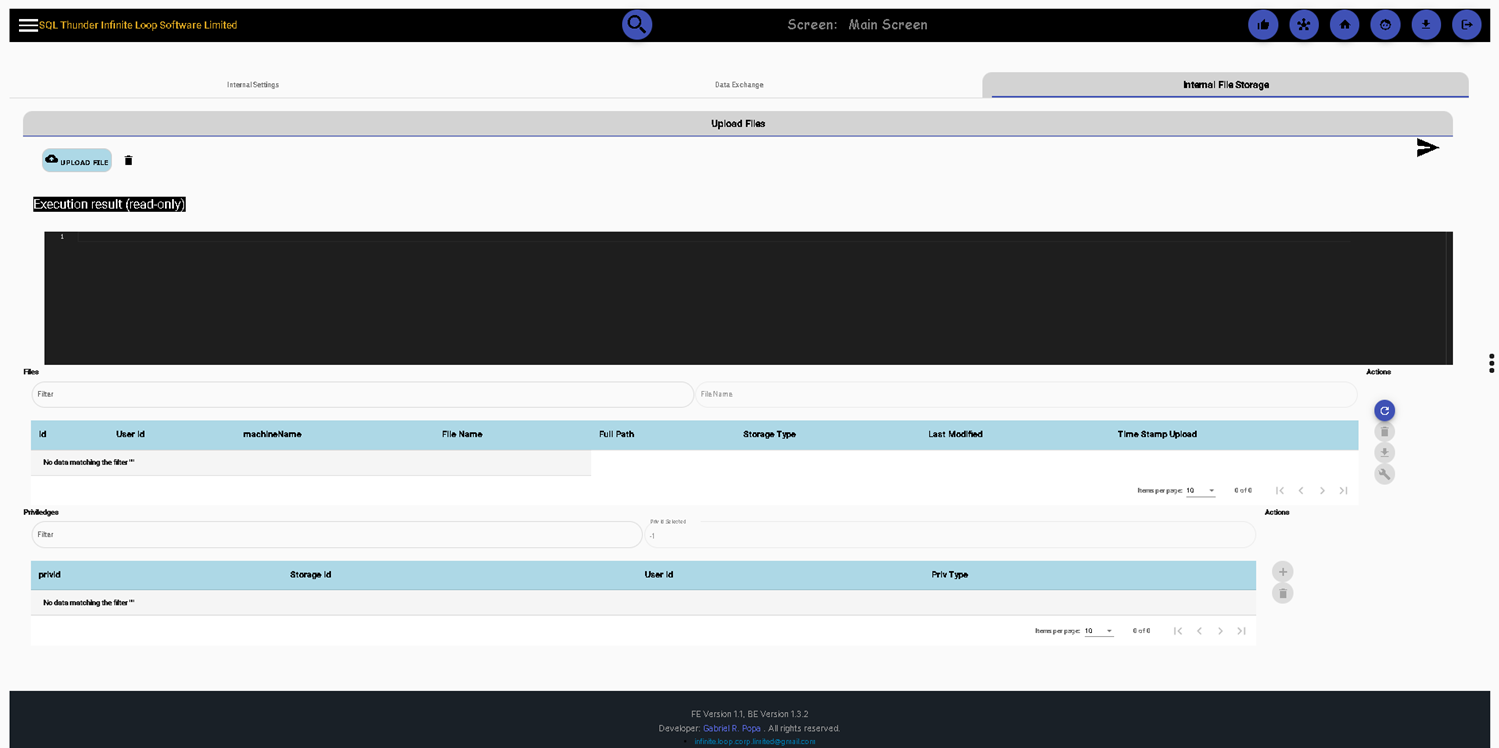
Internal File Storage and Data Exchanges. A user can share files with other users (internal users via Internal File Storage), or with external users via Data Exchange when 2 or more Sql Thunder instances can collaborate and exchange information.
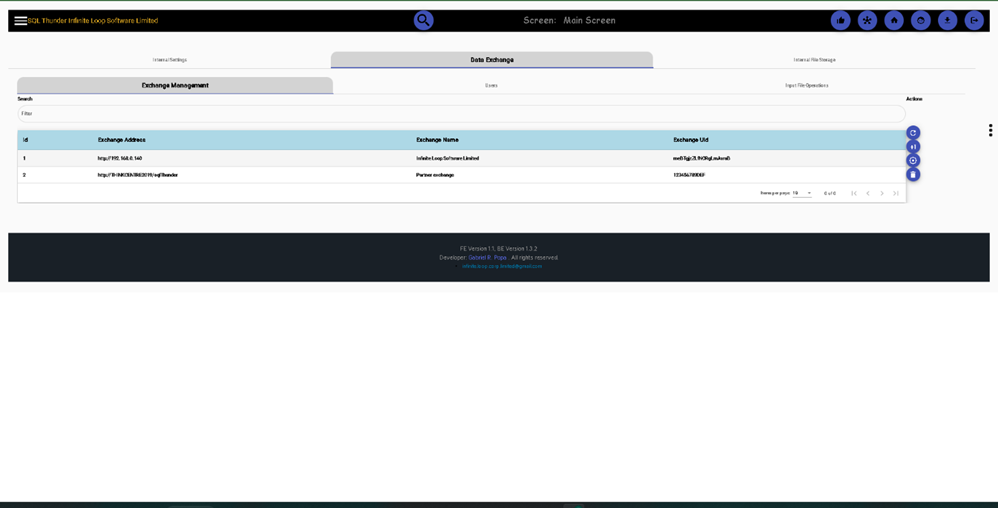
Data Exchange can be set up here. Two Sql Thunder instances can collaborate, for instance, two different teams in the same company, can exchange files, one team representing the up-stream data provider for the second one
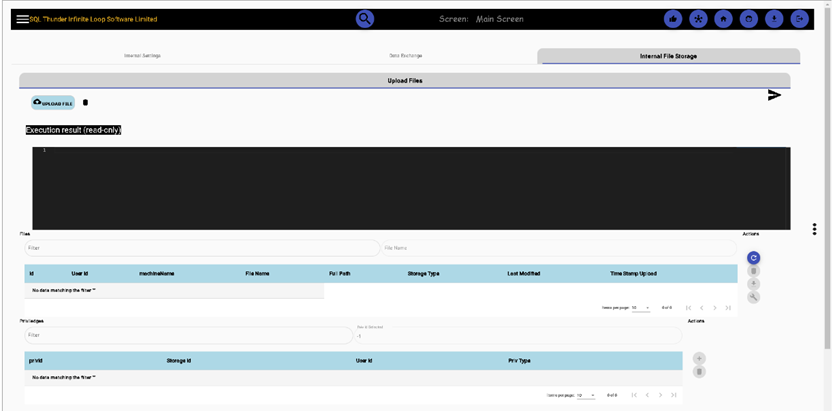
Internal File Storage, where we can store personal files or exchange them with another user from the same Sql Thunder instance
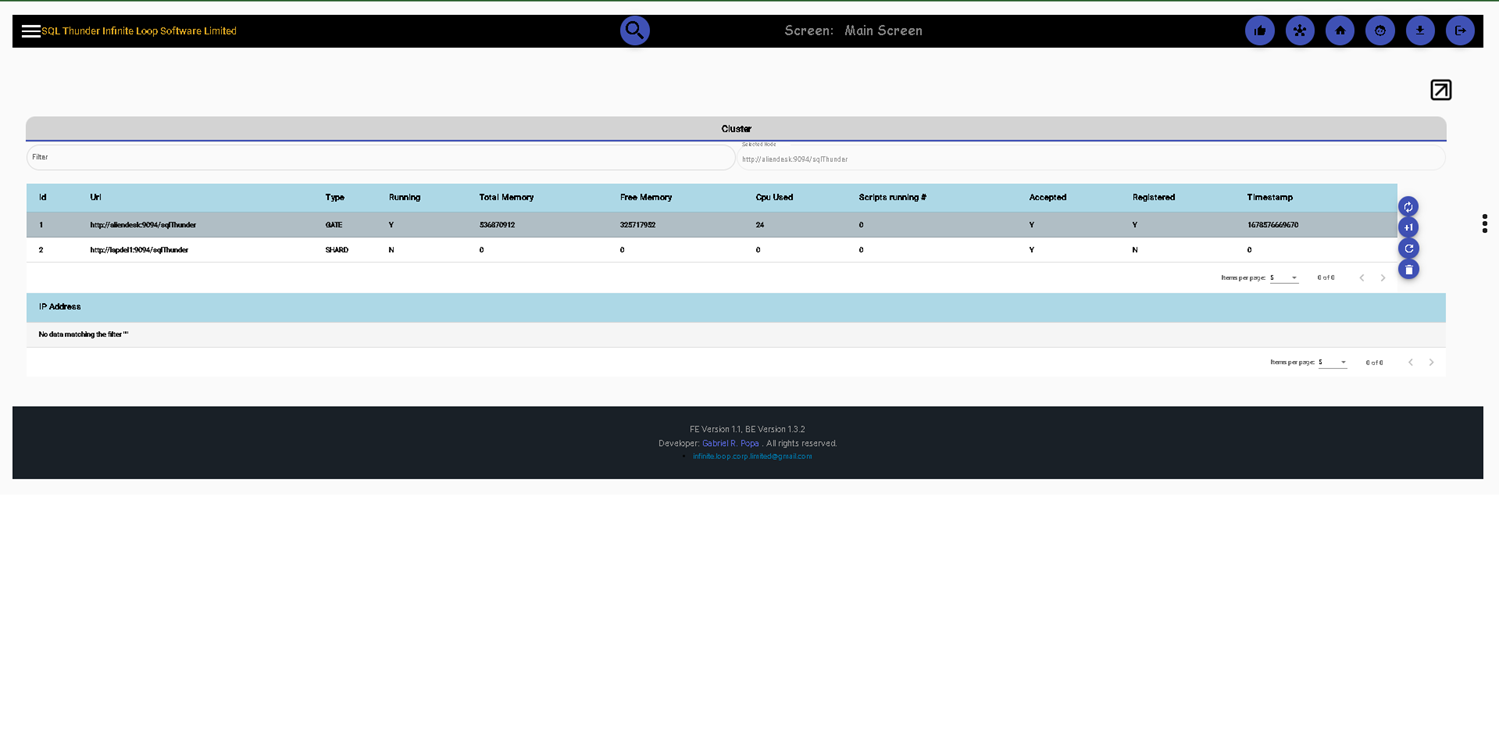
Cluster Management. We can add multiple Sql Thunder instances in a cluster so we can execute statements or scripts in a cluster and compound them.
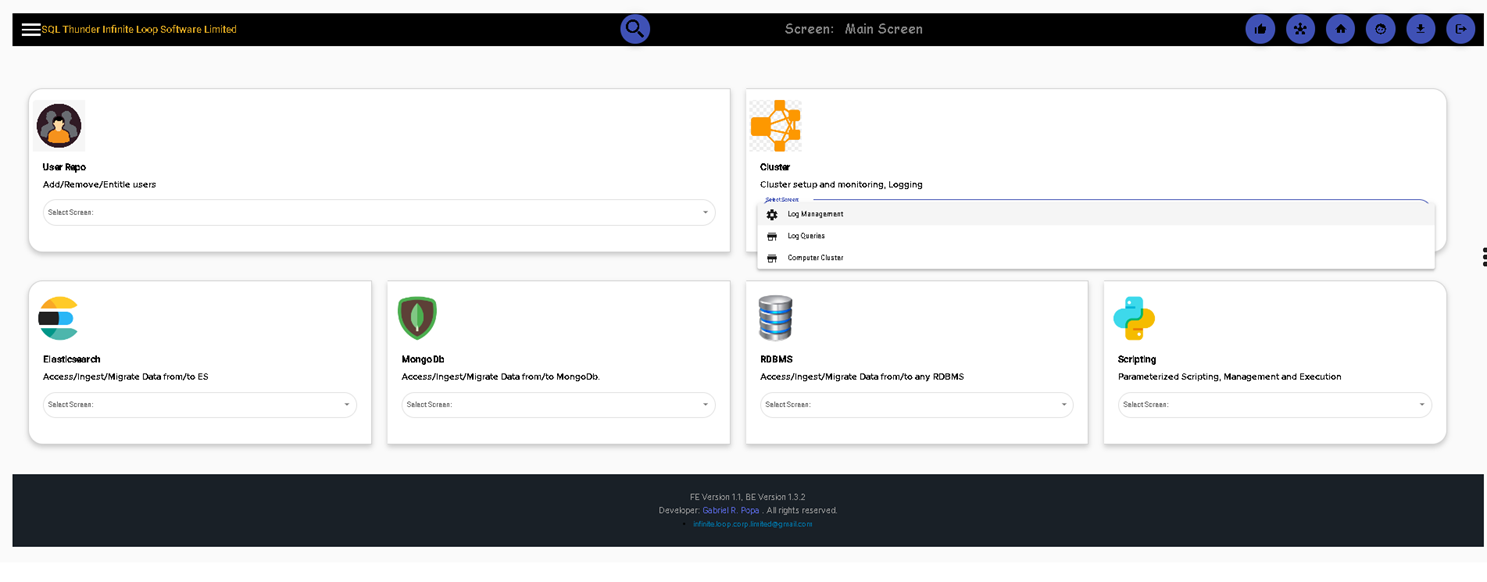
Add, and remove cluster nodes to either be used as GATE (an entry point from the user interface), or as SHARD ( execution node )
Elasticsearch Management (second tile, First menu option). By default, SQL Thunder has the settings for a locally installed Elasticsearch (localhost on port 9200), but you can remove it and add a new one
Elastic Query Management, Save, store, and manage SQL statements for later use
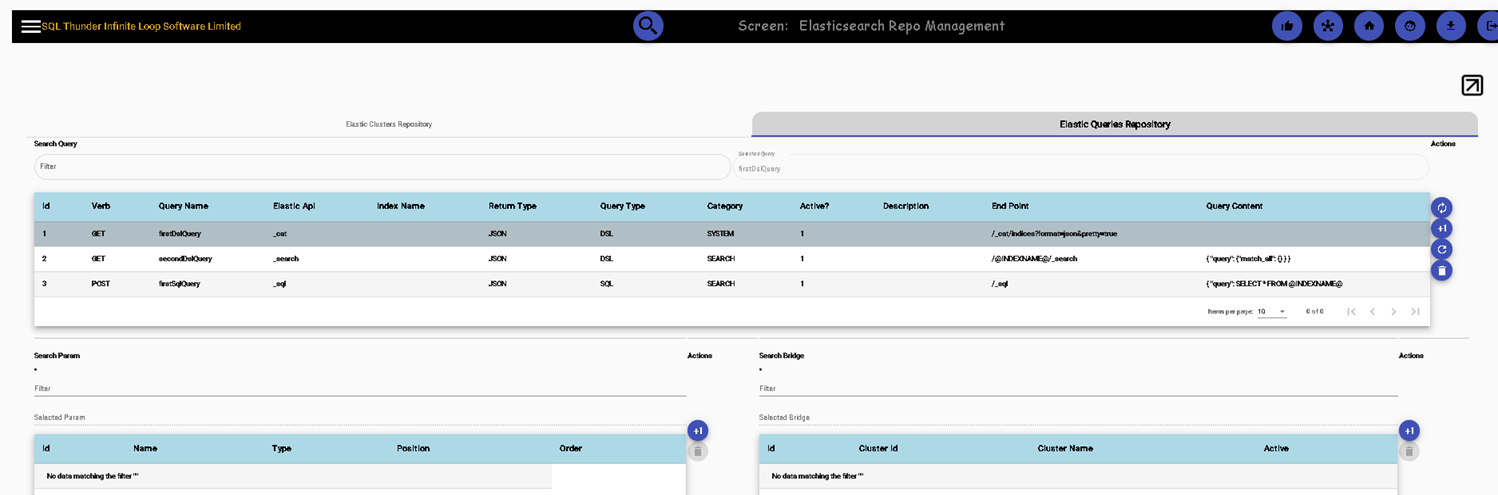
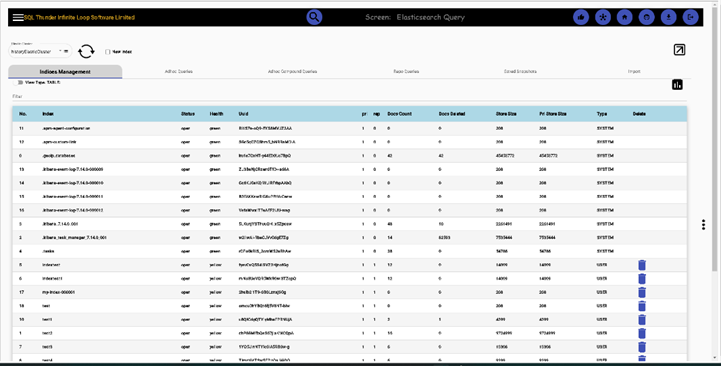
Elasticsearch queries, Index Management, Adhoc queries, Adhoc Compound queries, Repo queries, Saved Snapshots and Imports. NOTE: The UI displays both JSON format and table format any output.
Below, the Index management tab is shown
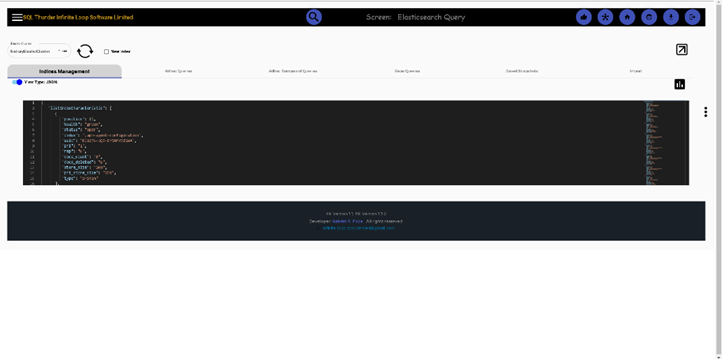
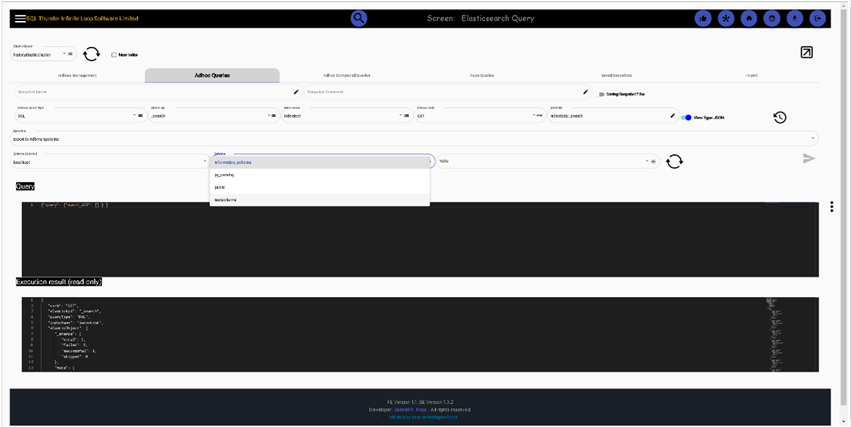
Adhoc queries (both in JSON and TABLE format). We can also export data to any connected RDBMS database, Elasticsearch or MongoDB, we can even store in memory the result set, later on querying it with SQL
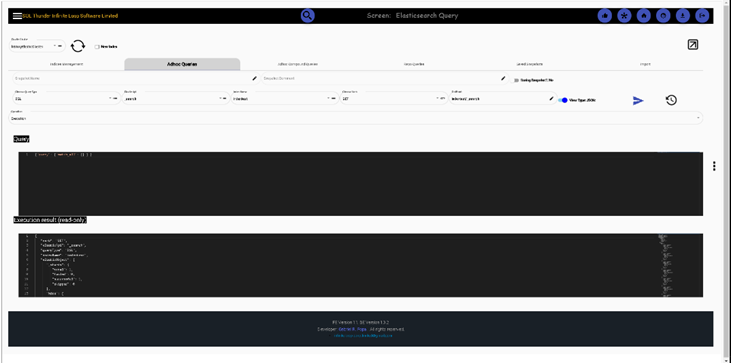
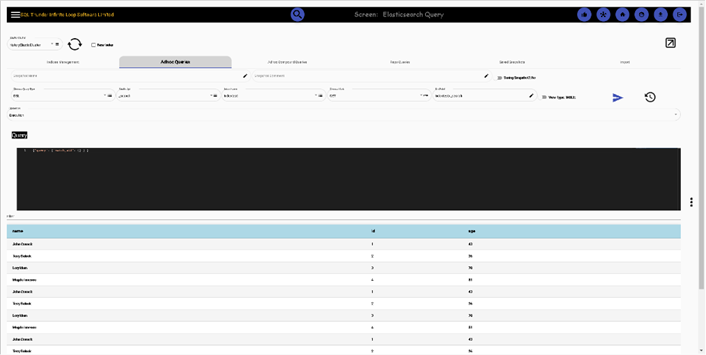
Example of exporting Elasticsearch to Postgres database
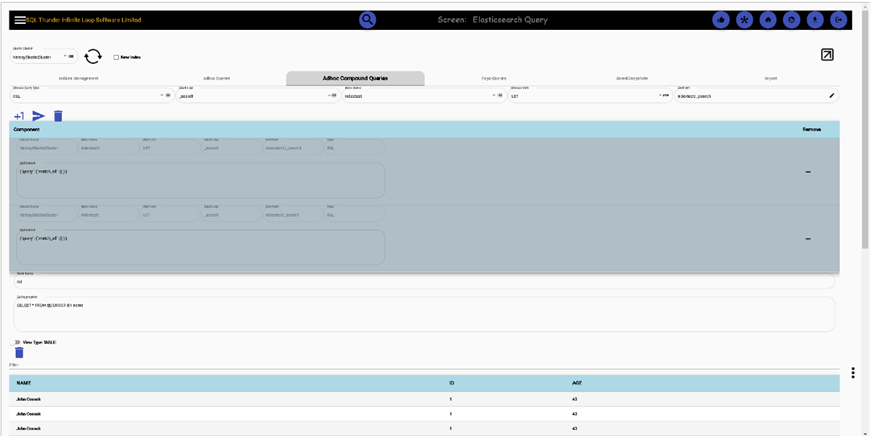
Elasticsearch Adhoc compounded queries. Yes, you can query multiple clusters and multiple indexes, and compound them with plain SQL
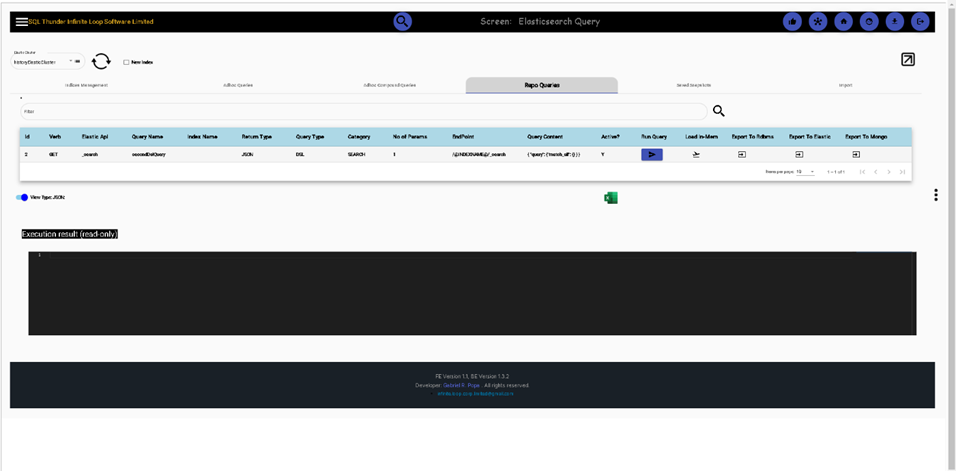
Repo query. We can use parameterized queries, initially stored in the repository.
We can also store the result in memory, so we can later query in plain SQL, and export the result to any RDBMS database connected database or another elastic or Mongodb.
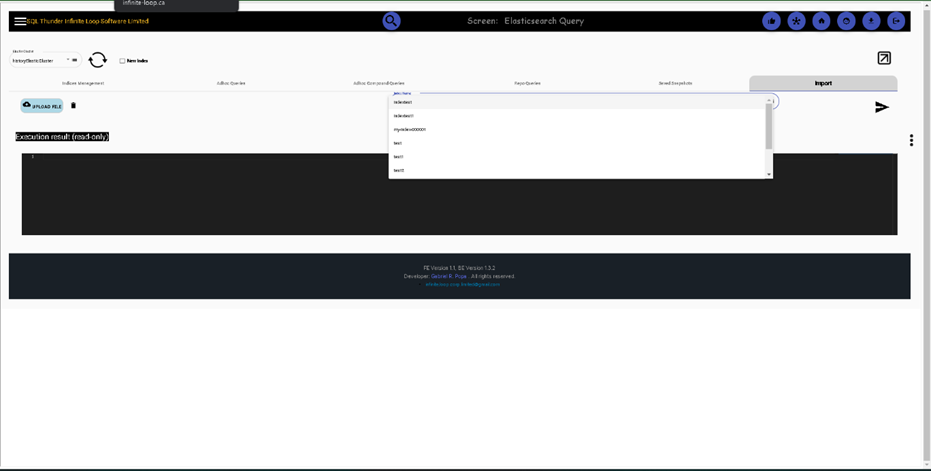
Import data from CSV into Elasticsearch
Mongo DB and RDBMS screen-related functionality are similar to Elasticsearch. We can add new clusters in the management screen, then we can query, import export store in mem for query data in SQL.
SCRIPTING
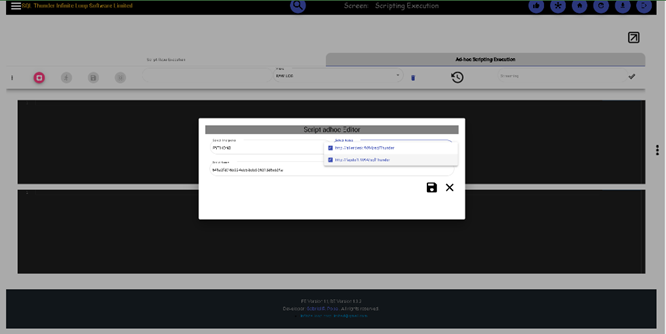
For both ad-hoc and repo you can run a script on multiple nodes, in parallel. We can demo ad-hoc, but the repo works in the same way. First set up environment for the script, then add the script code and run
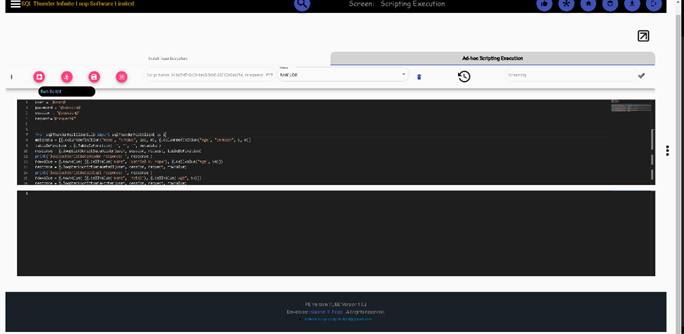
The results, both stdin/err and push notification can be selected to be viewed. Push results in table format, then, second logs in raw data
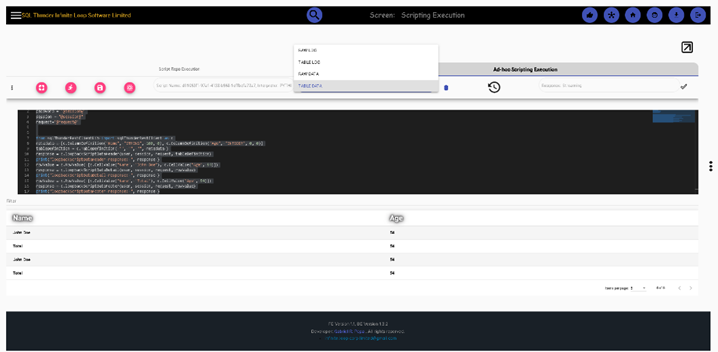
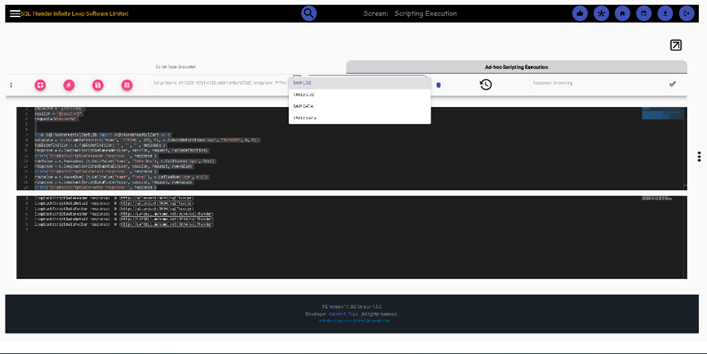
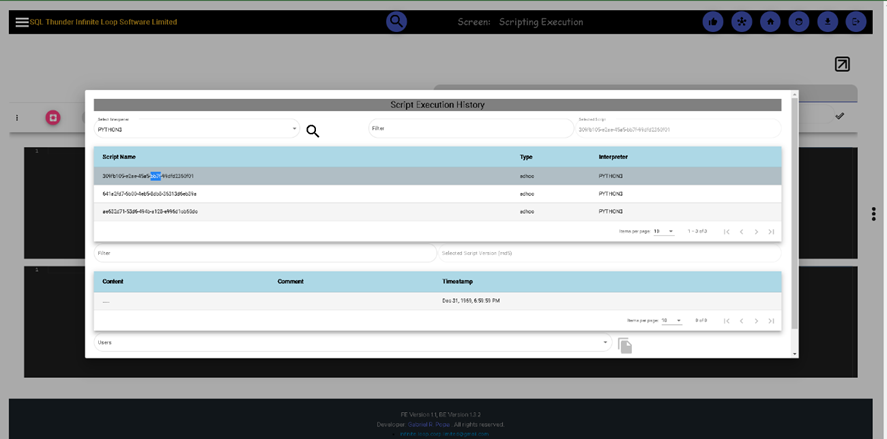
Like the SQL statements, executed scripts can be retrieved from history, and they are reconciled based on their SHA 512 hash values. Click on the History button to pop up the search screen. Once selected, click on the download button to bring them into the editor
The script requires some decoration so that the engine can interpolate them.
user = '@user@' password = '@session@' session = "@session@" request="@request@"
from sqlThunderRestClientLib import sqlThunderRestClient as c metadata = [c.ColumnDefinition("Name", "STRING", 100, 0), c.ColumnDefinition("Age", "INTEGER", 0, 0)] tableDefinition = c.TableDefinition( "", "", "", metadata ) response = c.loopbackScriptDataHeader(user, session, request, tableDefinition) print("loopbackScriptDataHeader response: ", response ) rowValue = c.RowValue( [c.CellValue("Name", "John Doe"), c.CellValue("Age", 54)]) response = c.loopbackScriptDataDetail(user, session, request, rowValue) print("loopbackScriptDataDetail response: ", response ) rowValue = c.RowValue( [c.CellValue("Name", "Total"), c.CellValue("Age", 54)]) response = c.loopbackScriptDataFooter(user, session, request, rowValue) print("loopbackScriptDataFooter response: ", response )